AmiBroker - Using Our ASX Stocks Data
The first installation step below requires a data update to be performed. If you have purchased a data history as a stand-alone item (i.e. without a
subscription to the ASX data updating service), then you will need to sign up for a no obligation 3-week free trial so that the installation can be completed successfully
(be sure to sign-up with your existing username).
Step 1
The first thing you need to do (if you haven't already done so) is install the "Premium Data" updating program and an ASX data history.
Installation instructions can be found here.
After installation is complete, open the "Premium Data" program and click the "Update" button to perform an update.
Please note: Performing a data update is an essential step. There is no point in proceeding with
the remaining steps until you have completed Step 1.
Step 2
Close AmiBroker and Premium Data if they are open.
Step 3
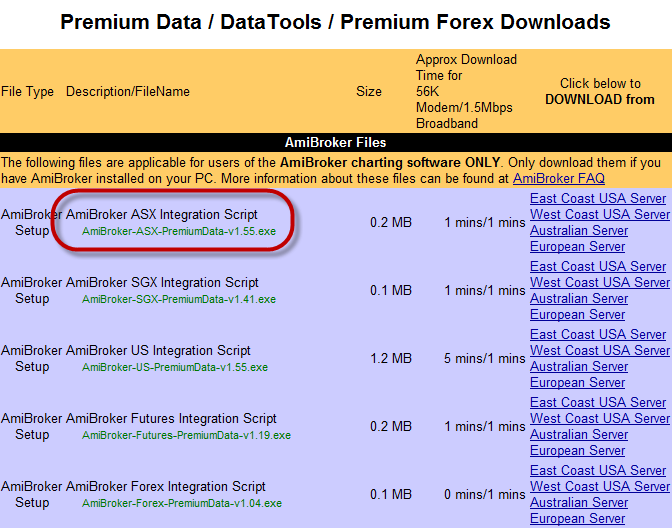
If you haven't already downloaded the Amibroker ASX Integration Script Installer from our website, do so now.
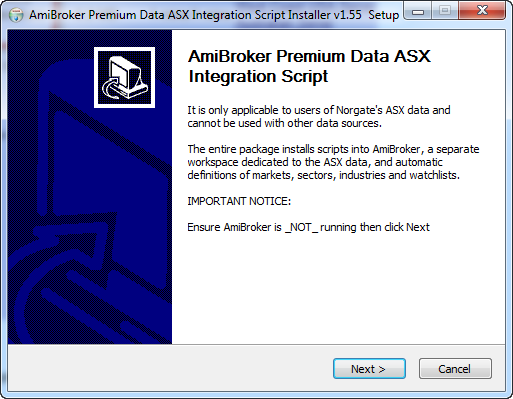
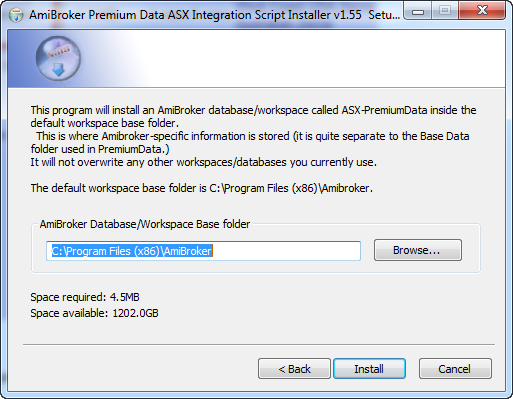
Once it has been downloaded, run the Installer.
Step 4
Open AmiBroker.
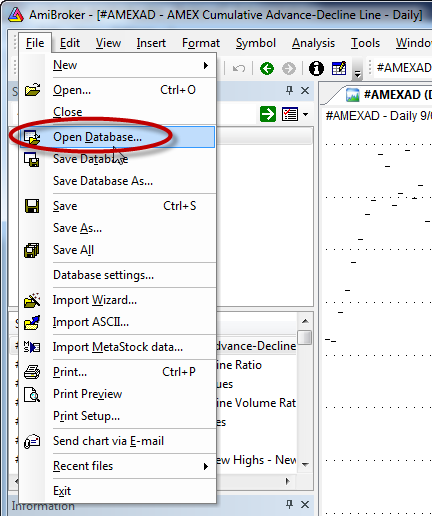
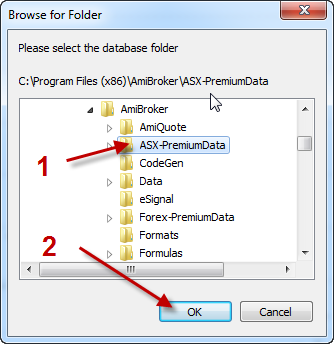
Go File > Open Database and navigate to "C:\Program Files\AmiBroker" then select the ASX-PremiumData folder
so that the entire path reads something like "C:\Program Files\AmiBroker\ASX-PremiumData".
Click Ok.
Step 5
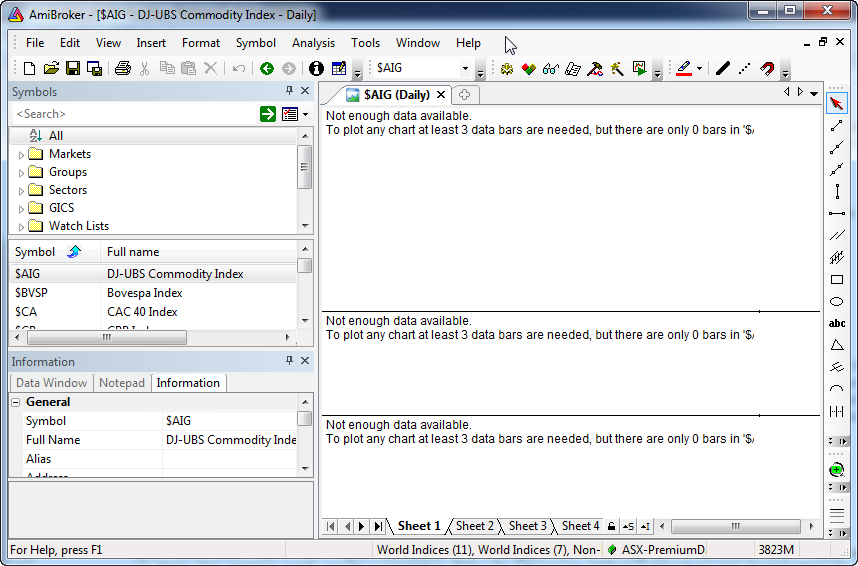
When you first open the database, it will say "Not enough data available."
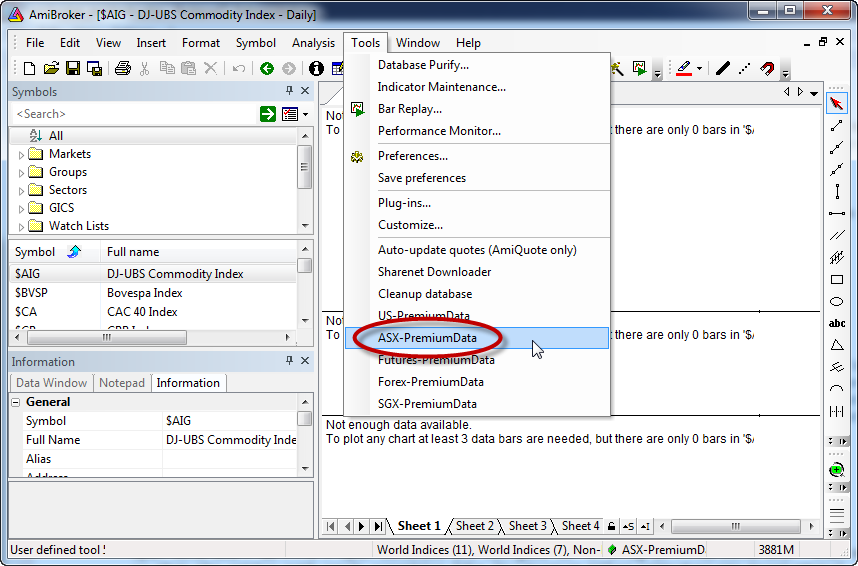
Go Tools > ASX-PremiumData - this runs the maintenance script and it will populate all of the symbols, security types, sectors, industries and watchlists.
Step 6
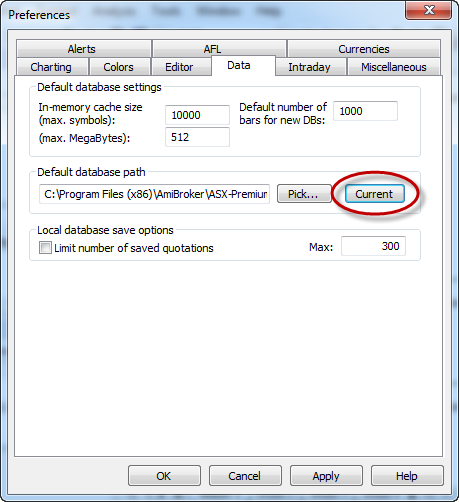
If desired, you can set the current database as the default so that it opens automatically when AmiBroker starts.
To do this, go Tools > Preferences, select the Data tab and under the box marked "Default database path" click the "Current" button then OK.
Important Note!: You will need to run the maintenance script (Tools > ASX-PremiumData) periodically to bring Amibroker
up to date with database maintenance actions (symbol changes, name changes, new listings, delistings etc.).
For the ASX, we recommend running maintenance at least once a week (on Mondays). Please see Step 6 above.
|