Norgate Investor Services Products Support Corporate
General Support
- Downloads
- How to Download
- Installation
- Downloading / Installation FAQ
- Antivirus Programs
- Submit Problem Report
- Premium Data Converter
- Smart Charts Copier
Subscription Support
- Subscribe, Resubscribe or Upgrade Subscription
- Refunds Policy
- Current Subscription Details
- Price
- Free Trial
- Forgot Password
- Installing on a Second Machine
- How to Upgrade an ASX Subscription
- Privacy Policy
- Licence Agreement
Premium Data/Stock Market Support
- Premium Data FAQ
- Exchange Traded Funds
- ASX FAQ
DataTools/Futures Support
- DataTools FAQ
- DataTools Service Information
- Understanding Futures Data
- Futures Coverage Notes
- Futures Database Notes
- Futures Contract Detail (Spreadsheet)
- Futures - Continuous Contracts
Forex Support
- Premium Forex FAQ
- Premium Forex Service Information
Charting Programs & Our Data
- Switching To Us From Another Vendor
- Advanced GET FAQ
- AmiBroker FAQ
- Dynamic Trader FAQ
- FCharts FAQ
- Fibotrader FAQ
- Gannalyst FAQ
- Guppytraders Essentials FAQ
- HotTrader FAQ
- Market Analyst FAQ
- MetaStock™ FAQ
- MTPredictor FAQ
- Omnitrader FAQ
- Stock Neuromaster FAQ
- Trading Blox FAQ
- TradeGuider FAQ
- TradeStation FAQ
Market Resources
- Alternative Market Glossary
- Links to Other Sites

AmiBroker - Using Our Forex Data


One of the installation steps below requires a data update to be performed. If you have purchased a data history as a stand-alone item (i.e. without a subscription to the Forex updating service), then you will need to sign up for a no obligation 3-week free trial so that the installation can be completed successfully (be sure to sign-up with your existing username).

Step 1

The first thing you need to do (if you haven't already done so) is install the "Premium Forex" updating program and a Forex data history.
Installation instructions can be found here.

Step 2

Close AmiBroker and Premium Forex if they are open.

Step 3

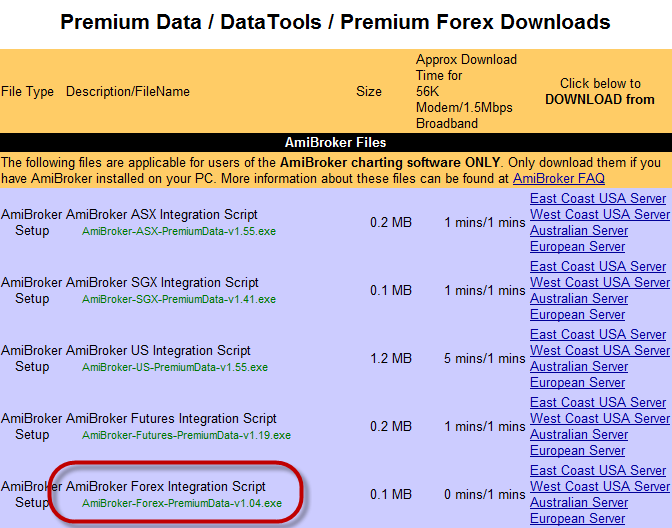
If you haven't already downloaded the Amibroker Forex Integration Script Installer from our website, do so now.
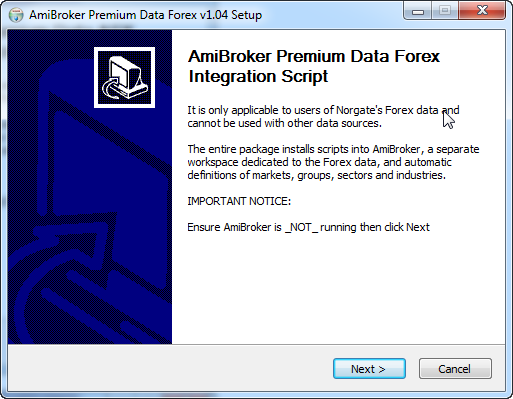
Once it has been downloaded, run the Installer.
Download the Forex integration script

Run the Forex integration script

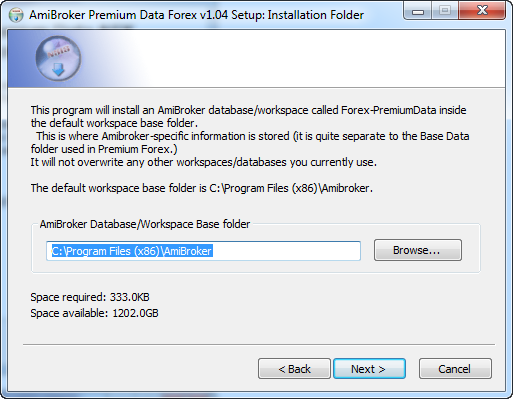
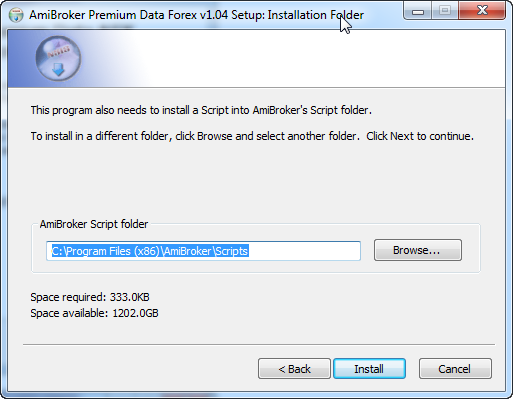
Change the integration script folder if necessary

Change the integration script location if necessary


Step 4

Open Premium Forex and do an update.
When the update is complete, close Premium Forex.

Step 5

Open AmiBroker.
Go File > Open Database and navigate to "C:\Program Files\AmiBroker" then select the Forex-PremiumData folder so that the entire path reads something like "C:\Program Files\AmiBroker\Forex-PremiumData".
Click Ok.
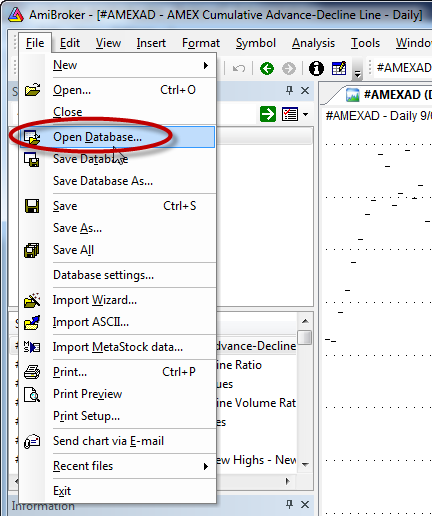
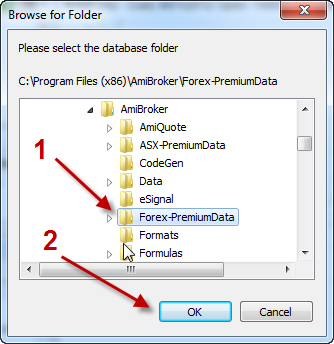
Open the Forex database in AmiBroker

Download the Forex integration script


Step 6

When you first open the database, it may say "Not enough data available."
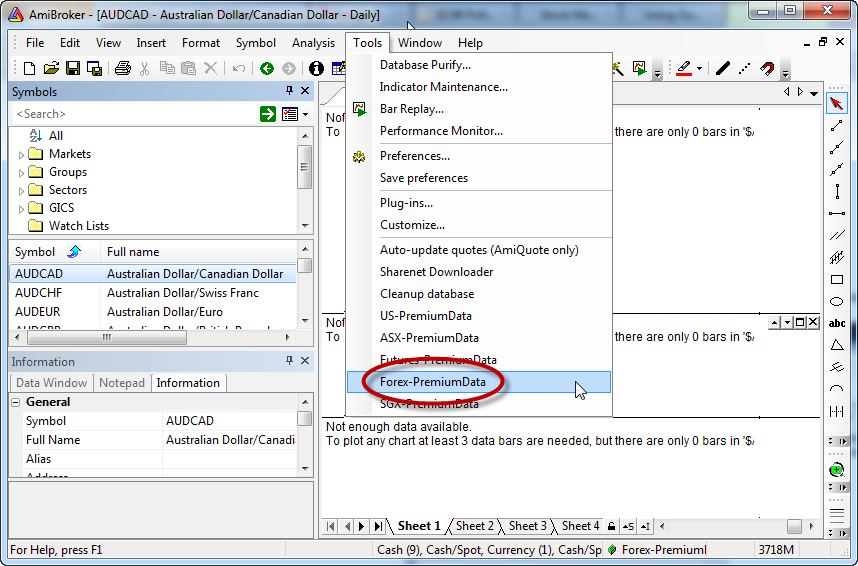
If it does, go Tools > Forex-PremiumData - this runs the maintenance script and it will populate all of the Forex data.
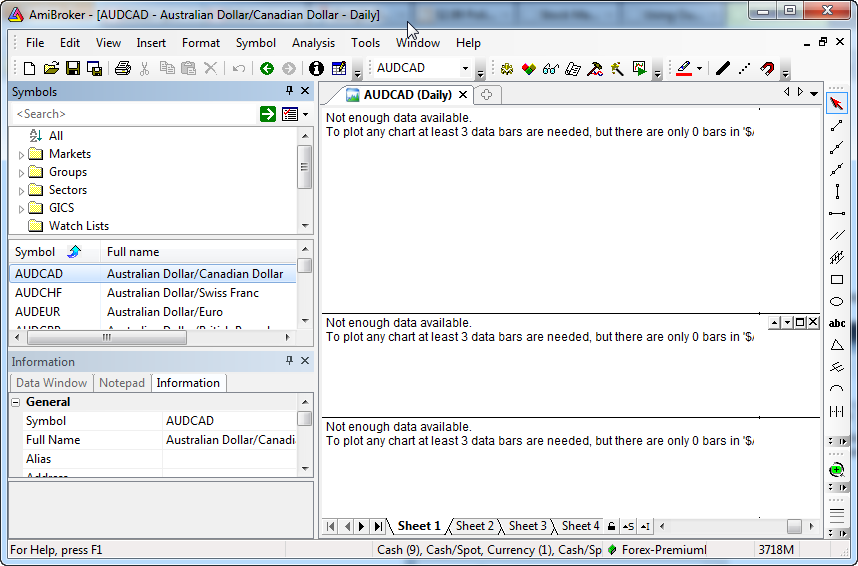
Not enough data available message

Run Tools > Forex-PremiumData


Step 7

If desired, you can set the current database as the default so that it opens automatically when AmiBroker starts.
To do this, go Tools > Preferences, select the Data tab and under the box marked "Default database path" click the "Current" button then OK.
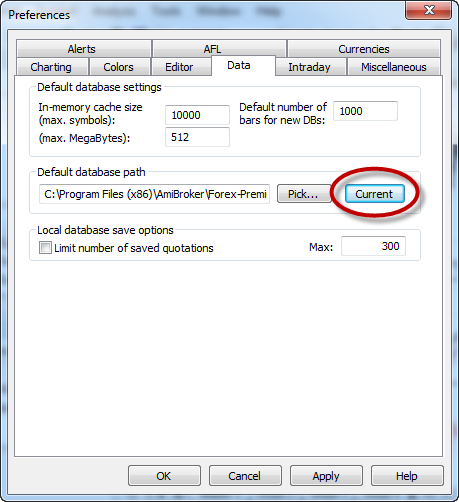
Set default database